> For the complete documentation index, see [llms.txt](https://help.lawlibrary.org.za/llms.txt). Markdown versions of documentation pages are available by appending `.md` to page URLs; this page is available as [Markdown](https://help.lawlibrary.org.za/subscription-management/upgrade-your-subscription.md).
# Manage an individual subscription
Subscribe to and manage an individual My LawLibrary plan.
An individual subscription gives you paid My LawLibrary access that you manage and pay for yourself. You can choose a plan, apply an eligible discount and manage your billing from **My Account**.
If your firm or chambers will pay for your access, see [Organisations and chambers](/subscription-management/organisations-and-chambers.md) before you start a separate subscription.
## Subscribe to a plan
1. Create a LawLibrary account or log in.
2. Click **Subscribe** in the top-right menu.
3. Click **See plans & pricing**.
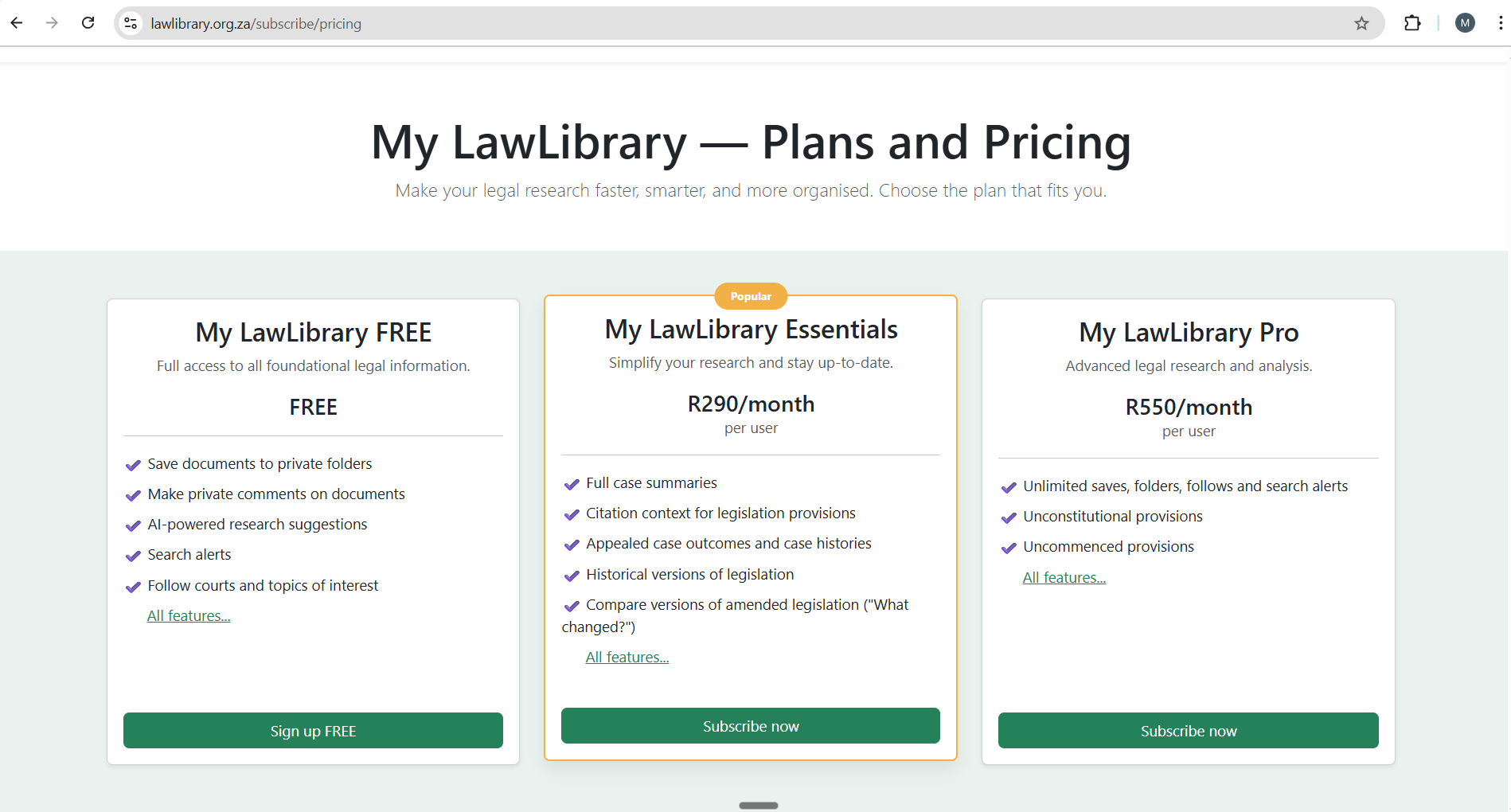
4. Compare the My LawLibrary plans.
5. Click **Subscribe now** under the plan you want.
## Apply a discount and pay
1. Enter your code under **Apply a discount code**, if you have an eligible code.
2. Click **Apply**.
3. Enter your billing details.
4. Click **Pay now and subscribe**.
5. Enter your card details on the secure payment page.
6. Click **Pay**.
Your subscription starts after LawLibrary confirms the payment. Your invoice is sent to your billing email address.
If you do not want to complete the payment, click **Cancel transaction** on the payment page.
## Manage your subscription
1. Log in to LawLibrary.
2. Click your name in the top-right menu.
3. Click **My Account**.
You can view your current plan and use the available controls to:
* change or cancel your individual subscription;
* update your billing details or payment card;
* view your billing history; and
* apply or review an eligible discount.
## When an organisation starts paying for your access
You do not need a second LawLibrary account. Accept the organisation invitation using the email address linked to your existing account.
When the organisation-funded plan becomes active:
* your account and saved research stay in place;
* LawLibrary stops your individual billing before the organisation-funded period overlaps with it;
* any eligible unused value from a settled prepaid subscription becomes a credit for the organisation; and
* an eligible discount remains linked to you and is taken into account on your organisation-funded seat.
While the organisation funds your plan, **My Account** shows **Provided by \[organisation]**. Personal payment and cancellation controls are hidden because the organisation manages that plan.
If the organisation later stops funding your access, your account moves to the free plan. You can then start a new individual subscription without overlapping billing.
## If your subscription does not start
First check whether the payment completed successfully. A cancelled or unsuccessful transaction does not activate the subscription. If payment succeeded but your plan has not changed, [contact LawLibrary support](/additional-resources/get-help-and-support.md).
---
# Agent Instructions
This documentation is published with GitBook. GitBook is the documentation platform designed so that both humans and AI agents can read, navigate, and reason over technical content effectively. Learn more at gitbook.com.
## Querying This Documentation
If you need additional information that is not directly available in this page, you can query the documentation dynamically by asking a question.
Perform an HTTP GET request on the current page URL with the `ask` query parameter, and the optional `goal` query parameter:
```
GET https://help.lawlibrary.org.za/subscription-management/upgrade-your-subscription.md?ask=&goal=
```
`ask` is the immediate question: it should be specific, self-contained, and written in natural language.
`goal` is optional and describes the broader end goal you are ultimately trying to accomplish on behalf of the user. GitBook uses it to tailor the answer towards what is most useful for that goal.
The response will contain a direct answer to the question and relevant excerpts and sources from the documentation.
Use this mechanism when the answer is not explicitly present in the current page, you need clarification or additional context, or you want to retrieve related documentation sections.